Quick instructions
Quick instructions
11. AI-tutor AI assistant
11.2. AI-tutor for teachers
Contents:
- 1. About the AI-tutor tool
- What is the AI-tutor tool?
- What types of courses is AI-tutor suitable for?
- 2. AI-tutor pilot at Tampere Universities
- How do I participate in the pilot and get access to AI-tutor?
- 3. AI-tutor user instructions for teachers
- A. Getting started: Choose what AI-tutor knows and adjust the settings
- B. During use: Synchronise content changes, review conversations and manage usage
- C. After use: Provide your own feedback and collect feedback from students
- D. Privacy, information security and language models
- 4. Support, contact details and frequently asked questions
- Support and tips
- Pilot contact details
- Frequently asked questions
1. About the AI-tutor tool
What is the AI-tutor tool?
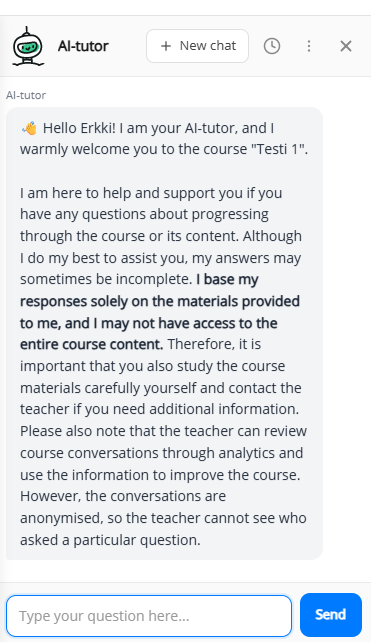
AI-tutor is an AI assistant, an AI chat tool, that can be added to a Moodle course area. The teacher provides AI-tutor with knowledge from all or some of the course materials. AI-tutor answers questions based only on this content. You can ask AI-tutor questions related to course instructions, completion requirements or course content.
Unlike using tools such as Copilot, AI-tutor operates within a specific Moodle course area and answers questions only on the basis of the materials available there and according to predefined instructions. Conversations are stored within the course area and are visible to the teacher.
What types of courses is AI-tutor suitable for?
Self-study courses:
- AI-tutor is well suited to courses where there is little teacher guidance during course completion. AI-tutor gives students the opportunity to receive advice and support for their studies 24/7 and provides teachers with assistance in answering the most common questions.
Using AI in learning assignments:
- AI-tutor is suitable for courses where the use of AI is required to complete a specific assignment, for example, when the task is to discuss the course materials with AI.
Courses with extensive study materials:
- AI-tutor is well suited to courses that include a large amount of study content and materials. AI-tutor can create summaries and questions based on the course materials and help students identify the essential content. It can act as a study coach and discussion partner in learning the content, as well as a study adviser supporting course scheduling and completion.
Practising the use of AI during a course:
- AI-tutor is suitable for courses where the aim is to practise the responsible and purposeful use of AI. Students evaluate their experience and the support and responses provided by AI as part of their self-assessment.
You can test AI-tutor in the Moodle teaching test area: Course: Moodle-opet | TUNI Moodle (course is in Finnish).
2. AI-tutor pilot at Tampere Universities
How do I participate in the pilot and get access to AI-tutor?
We will pilot the AI-tutor tool at Tampere Universities 5.10.2026-31.5.2027. If you will be running your course in Moodle during this period, you are welcome to join the pilot. As a pilot participant, you are expected to provide and collect feedback after the course. Please note that, as AI-tutor is still in the pilot phase, we may need to limit the number of courses selected for the pilot, and we may suspend the pilot if necessary.
→ Register for the pilot by completing the form.
You must submit a separate registration for each course area, as AI-tutor permissions are granted on a course basis to all teachers in the course.
3. AI-tutor user instructions for teachers
First, register for the pilot and you will receive the permissions required to use AI-tutor in your course. You will be notified by email when AI-tutor is available for use.
A. Getting started: Choose what AI-tutor knows and adjust the settings
Go to your course area and select from the main menu: More > AI-tutor Settings.
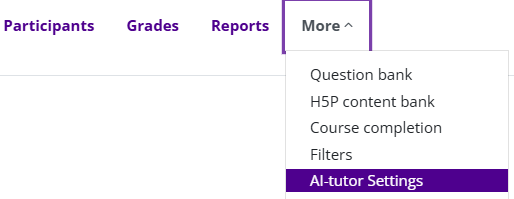
Next, work through the tabs on the page that opens. This is where you define AI-tutor’s knowledge base and configure its behaviour.

Activities & Blocks -tab
You can see a list of all activities in the course. Select, by clicking, which activities AI-tutor can access. The selected activities form AI-tutor’s knowledge base. The knowledge base is always course-specific. Finally, click Save and Sync.
- Note the additional options for the Quiz activity: By default, AI-tutor only knows the quiz schedule, but if needed, you can also allow it access to the quiz questions and even the answers. In any case, AI-tutor is not available to students during the quiz.
- AI-tutor can process only text-based content. At least for now, it cannot interpret the content of images or videos. AI-tutor also does not have access to the content behind links, so it cannot answer questions about content that is available only through a link.
Files and Text -tab
Check the status of the files selected for inclusion in the knowledge base. AI-tutor reviews all files selected for the course knowledge base, and you must separately approve a file if its content is identified as being protected by copyright. If a file has been identified in this way and you have the right to use it in this context, click I have permission to use this file.
- See the Files and Text -tab for more detailed guidance on what is permitted under copyright regulations and when you need permission.
- On the Files and Text -tab, you can also add files or text to AI-tutor’s knowledge base as supplementary material, even if they are not included in the actual course content.
Instructions -tab
If needed, you can add course-specific instructions to supplement the general system prompt. AI-tutor works well even if you do not add any additional instructions.
- See the Instructions -tab for examples of course-specific instructions.
Welcome -tab
You can edit the AI-tutor welcome message shown to students in the course when they start a new conversation with AI-tutor.
Tip! Course names are often long because they also include the course implementation code. It may be more user-friendly to replace the coursename placeholder in the welcome message with a shorter course name.
AI Behaviour -tab
Choose how strictly AI-tutor should rely on your selected knowledge base instead of using general knowledge. In most cases, the default option, "Course materials only", is the clearest choice. In this mode, AI-tutor does not search for information from language models general knowledge but bases its responses solely on the materials you provide.
- For the response language setting, it is usually best to keep the default option, "Auto-detect (match student)", so that AI-tutor follows the student's language choice.
- For privacy settings, it's recommended to leave the option "AI can see students grades and feedback" disabled unless you are certain that this functionality is needed.
Once you have gone through these tabs, you can return to the course front page. AI-tutor will then appear in the lower-right corner of the page (robot icon).
Test AI-tutor yourself
AI-tutor is available to teachers in a course in exactly the same way as it is to students. You can test AI-tutor yourself to see how it works. There is no need to switch your role from teacher to student when testing it.
Tell students about AI-tutor
Include information in the course that AI-tutor is available on the course. Explain how you recommend students use AI-tutor within the course. You can adapt the instructions for your own course using this template: Template announcement for students.
You can also add a link to the AI-tutor quick guide for students: AI-tutor for students.
B. During use: Synchronise content changes, review conversations and manage usage

Synchronise course content changes
If you later modify the content of activities that have been selected for the knowledge base, remember to click the "Sync content" button afterwards. You can also add entirely new activities to AI-tutor’s knowledge base or remove activities that were previously included at any time.
Review conversations with AI-tutor
Course teachers can review students’ conversations with AI-tutor within the course area. However, students’ names are not visible in the conversation threads. Teachers cannot delete conversations. If needed, you can export all conversations as a CSV or JSON file for more detailed analysis.
Only in special cases Moodle administrators can identify students from conversation threads.
Disable or enable AI-tutor
If necessary, you can temporarily disable AI-tutor using the "Disable" button and re-enable it later. AI-tutor’s knowledge base and all other settings you have configured will remain saved.
Delete tutor
The "Delete tutor" button permanently removes all AI-tutor-related data from the course, including the knowledge base and conversation history. If you delete the entire course area yourself, or if the course area is later removed through the automatic deletion process, all AI-tutor-related data associated with that course area will also be deleted.
C. After use: Provide your own feedback and collect feedback from students
Teachers participating in the pilot are required to provide feedback themselves and collect feedback from students after the course using the forms below:
- Teachers: Provide your feedback using the form (COMING LATER)
You can add the following form to your course:
- Students: Collect feedback from students using the form (COMING LATER)
D. Privacy, information security and language models
Teachers on the course area can review conversations with AI-tutor, but they cannot see students’ names in those conversations.
Students and teachers cannot delete conversations with AI-tutor. All conversations are permanently deleted when the course area is removed, typically 6-24 months after the end of the course.
The information provided to AI-tutor and conversations with AI-tutor are not used to train AI models. All data and data processing remain within the EU in Tampere Universities’ own Microsoft Azure environment.
YES, you may use AI-tutor to process:
- Public, internal and confidential information (data classification categories 5, 4 and 3). For example, basic personal data such as a name and student number is allowed.
NO, you may not use AI-tutor to process:
- Confidential information with additional restrictions or secret information (data classification categories 2 and 1). For example, information about minors or a real person’s health data is prohibited.
You can find a more detailed privacy notice in the AI-tutor chat window: click the three dots icon and select “Privacy”.
During the pilot, AI-tutor uses ChatGPT-5.6 Luna or Terra as its language model, depending on the use case.
4. Support, contact details and frequently asked questions
Support and tips
For additional guidance and practical tips, see the AI-tutor’s built-in interactive help. In AI-tutor settings, click the "AI-tutor Guide" button.
If you need support, contact the IT Helpdesk (it-helpdesk@tuni.fi). Questions related to AI-tutor will be directed to the appropriate members of the AI-tutor pilot team.
Unfortunately, individual guidance for implementing or using AI-tTutor is not available. Participation in the pilot requires teachers to take an active role in familiarising themselves with the instructions and using the tool independently.
Pilot contact details
The AI-tutor pilot is part of the Use of "AI agents in teaching and learning" project (EDAG project). The project manager is Suvi Junes, and the IT specialist is Mikko Lammi.
The AI-tutor pilot aims to investigate the usefulness of the tool, potential challenges, typical use cases and the costs associated with its use.
Frequently asked questions
Is AI-tutor available for use in Tampere University Teacher Training School / Normaalikoulu (minor users)?
No. The AI-tutor pilot does not cover minor users, so teachers at the Teacher Training School cannot participate in the pilot if the course area includes minor users.
Can users with the "Non-editing teacher" role modify AI-tutor settings or view AI-tutor conversations?
No. Only users with the "Teacher" role in the course area can modify AI-tutor settings and view conversations with AI-tutor.
Does the Moodle course need to be fully built before enabling AI-tutor?
It is recommended that you build the Moodle course before enabling AI-tutor. In the AI-tutor settings, you select which course materials and activities AI-tutor can use as its knowledge base, and the list shows all materials and activities available in the course at that time. If you later add new content or update existing materials, you can also update the knowledge base accordingly.
What happens after the pilot ends on 31.5.2027?
During the pilot, we will gather experiences of using AI-tutor and collect more detailed information about the costs of use. Decisions regarding the future of the tool will be made only after the pilot has ended. If you need access to AI-tutor conversation histories after the pilot, export the conversations and save them separately as a backup before the pilot ends.
When can I register for the pilot if my course starts in the spring term?
You can register for the pilot at any time during the pilot period. Please note that access to the tool will end on 31.5.2027. Your Moodle course may continue beyond that date, but AI-tutor will no longer be available in the course.
What if I want to stop using AI-tutor before my course ends?
You can discontinue the use of AI-tutor at any time during your course. It is a good idea to inform students that the tool is being used on a trial basis and may be removed during the course, for example due to technical issues or other reasons. See the teacher instructions above for information on how to disable the tool.