Quick instructions
Quick instructions
6. Quick guide for teachers
6.3. Course templates (Kickstart format)
When you have created a new Moodle course in Sisu, Peppi, or manually and go to your course for the first time as a teacher, first choose how you will start building your course.
The following options are available:
- Choose one of the ready-made default templates to structure your own course.
- Copy one of your old courses as the basis for the new course. (Check the course visibility setting (show / hide) immediately after copying, because the visibility setting is copied from the old course.)
- If you want to start from a completely empty course, go to editing the course settings and change the course format.
When you are creating a course manually to the "Other" category and want to select one of the ready-made templates for your course structure, fill in the Course full name and Course short name fields and save them at the bottom of the page. Do not change the course format from the menu, but select a template from the page that opens after saving.
Option 1: Ready-made course template
The ready-made templates are
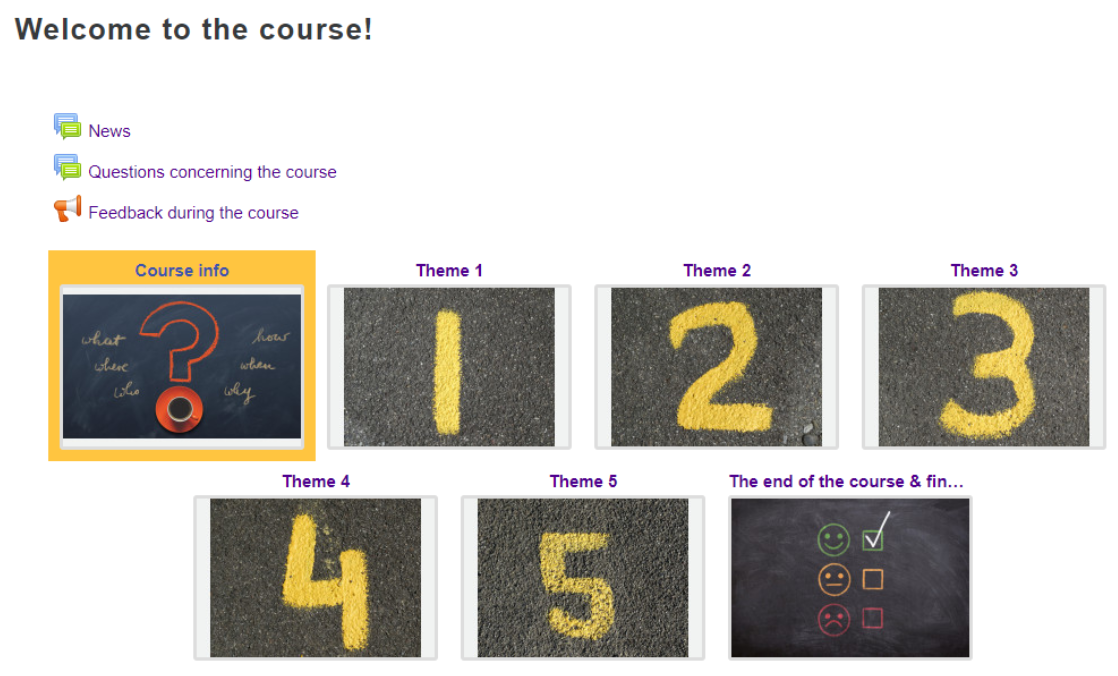
- Default template (Grid), which is specifically designed as the basis for large mass courses offered in contact teaching, but is also suitable for an online course. The template emphasizes visuality.
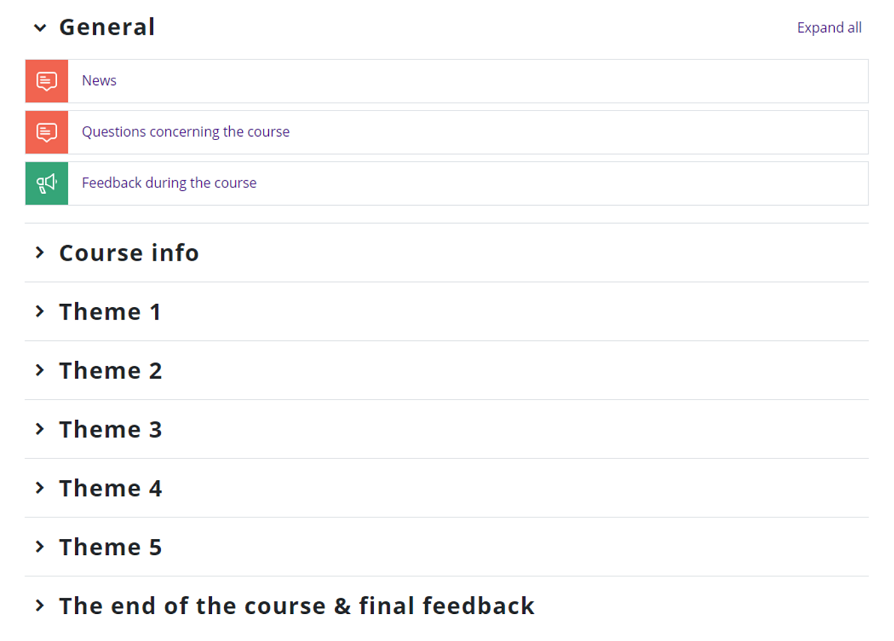
- Default template (Custom sections) (used to be Topics), which is specifically designed as the basis for large mass courses offered in contact teaching, but is also suitable for an online course. The template is especially suitable for courses with a lot of content.
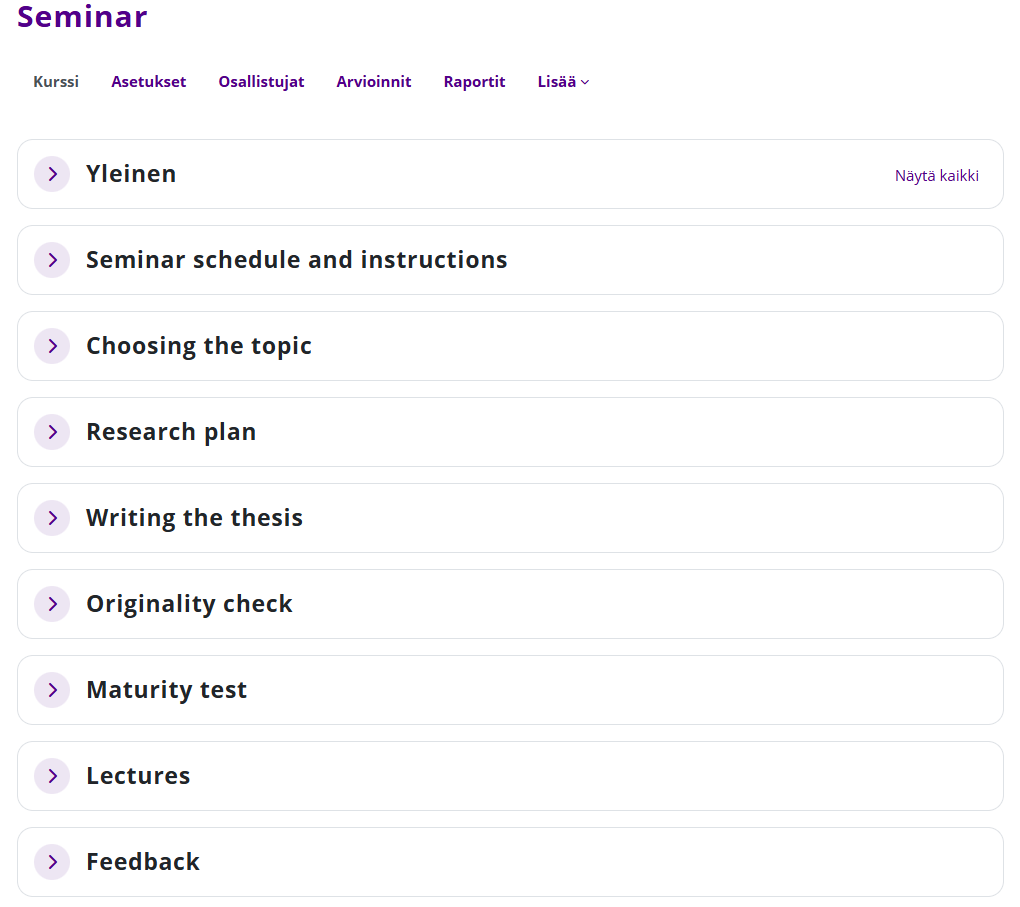
- Seminar, which is designed specifically for seminar-type and thesis courses.
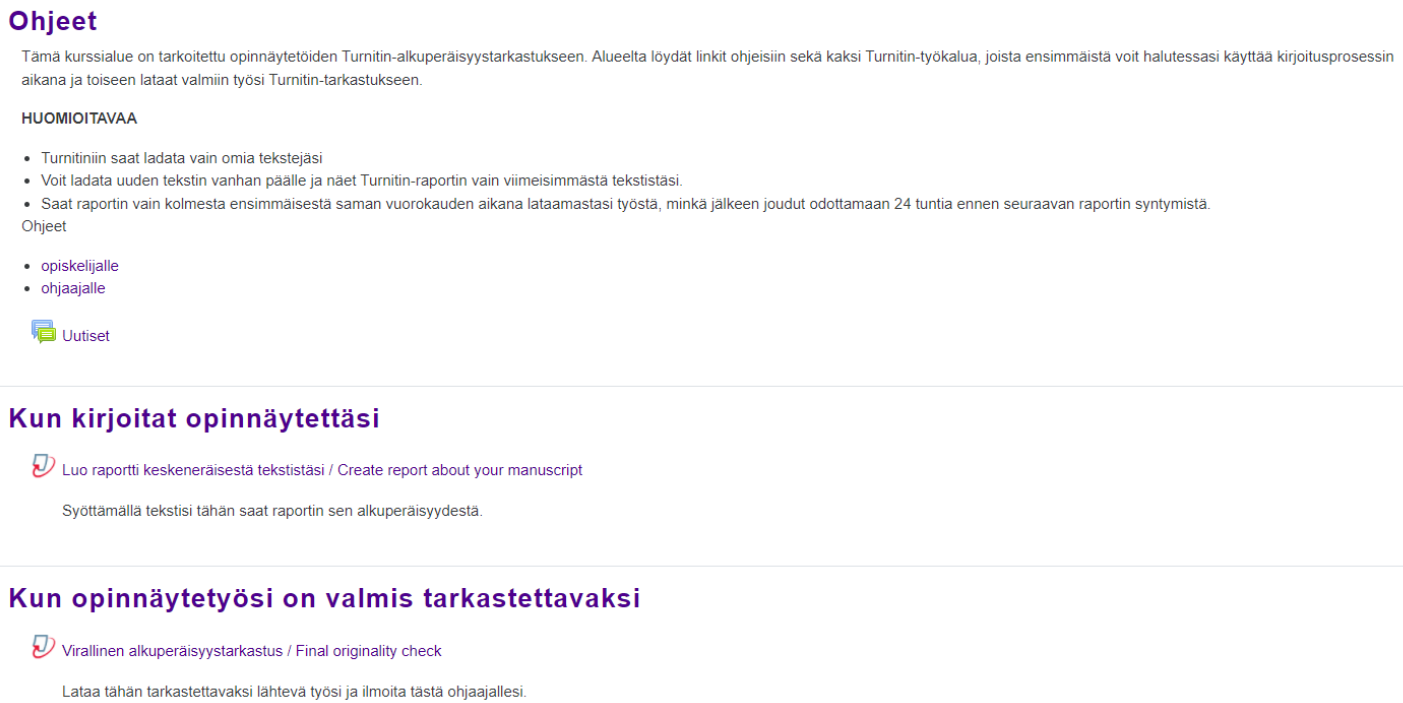
- Turnitin for thesis supervisors (the template is bilingual, you will see the texts in English if you use Moodle in English).
Before making selection, you can view the templates using the preview buttons. The selected template cannot be changed later.
Each template is designed to have a clear structure from which information and materials can be easily found. Use the templates as a model or inspiration for creating a course, however you are free to customize them to suit your own course needs.
Once you have selected a template, first read its instructions. You will find a link to instructions in each template.
Option 2: Copy from an old course
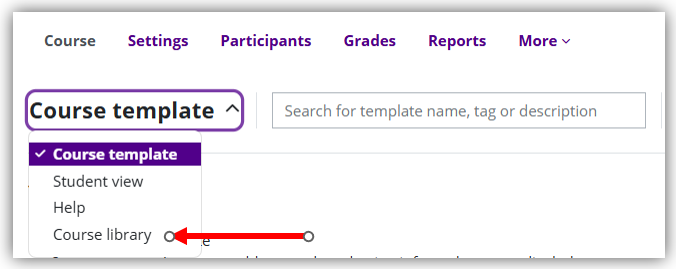
By selecting Course library from the Course template dropdown menu, you will see a list of courses where you are a teacher. Select a course from the list or search for it using the search function. Use the Import course button to copy the desired content from the course as the basis for a new course.
NOTE! The course visibility setting (show / hide) is also copied in the import. If the course you copied from is visible to students, the new course you copied content to will also be visible to students. Remember to check the visibility setting immediately after importing. Hide the course until it is ready to publish to students.
When copying a course, Moodle automatically changes the date settings for assignments and other activities by moving the dates and times forward by the difference between the start dates of the old and new courses. To ensure that the start and return times for assignments do not change, make sure that the start date times of the old and new Moodle course areas are the same. In Moodle courses created by Sisu, the start time is 02:00 in winter time and 03:00 in summer time. In course areas created by Peppi and created in the Other course category, the start date time is 00:00 by default.
Option 3: An empty course
To start building a course on a new blank basis, click the Edit course settings button on the right side of the page or Setting course tab and select the desired course format from the settings.