Quick instructions
6. Quick guide for teachers
6.4. Copy course (import)
Copy contents from one course to another within TUNI Moodle
When you have created a new blank course area in Sisu, Peppi, or manually in the Other category, you can copy content to the new empty course from another course. You have to be a teacher on both courses - both the course you are copying from and the course you are copying to.
The copy includes course files, tools, and structure, but users or their activities (e.g. discussions and files they have uploaded) are NOT included in the copy.
- Go to your empty Moodle course
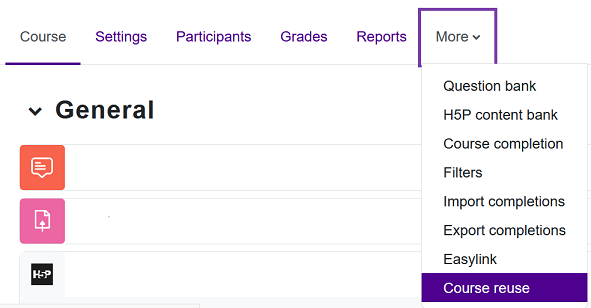
- Select the More tab and then from the menu Course reuse.
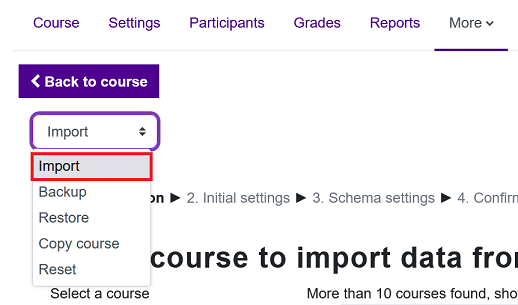
- Select from the menu Import.
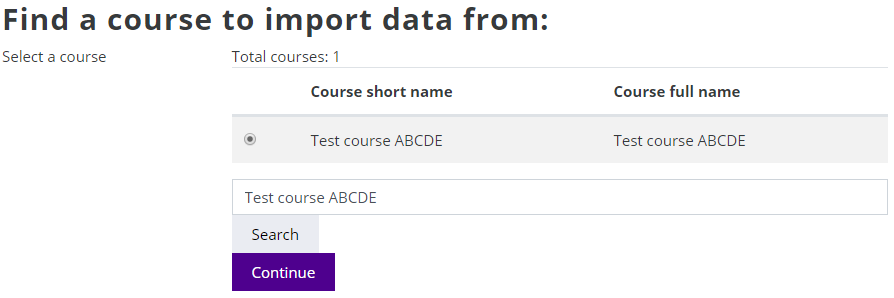
- Find your old course to import content from > Select the course > Continue
- On the following pages, select which activities you want to copy. NOTE! If there is a Turnitin tool in the area, it must not be copied. Each Turnitin tool must be created separately.
- Proceed from page to page with the Next buttons and finally press the Perform import button.
- You find the imported files and activities in the corresponding sections on the new course where they were in the old course.
- If the new course contains Panopto activities (linked videos) setup a new link between the activity and video by clicking the activity